Event Announcement Administration
Click a link below or Scroll down for step-by-step instructions.
If your question is not answered here, consult with your FAASTeam Program Manager or Safety Liaison Team Lead.
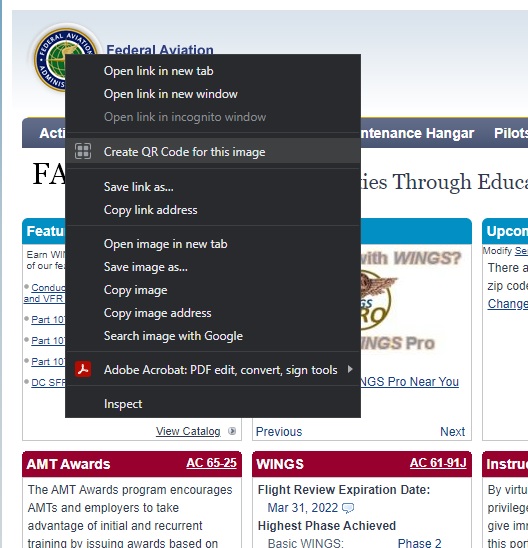
To generate a QR code: In your web browser, right click on a blank are of the page to see if generating a QR Code is an option. Otherwise, use https://www.adobe.com/express/feature/image/qr-code-generator You will need to create a free account.
Back to Top
Special Guidance for Recurring Events or Events that Require Multiple Event Announcements:
Back to Top
For guidance for recurring events or events that require multiple event announcements in SPANS, click the link below or copy and paste the URL into your browser. Find this document in the Representatives Library on the FAASafety.gov home page.
Special Event Guidance: Recurring Events or Multiple Event Announcements
For large events with more than one safety seminar, you should create one Primary (Master) Event Announcement to send just one email to the intended audience. The (Master) Event Announcement will have no WINGS or AMT credit. Then you will create web-only SPANS Event Announcement entries for each of the individual events or seminars.
FAA Safety Events General Information (SPANS):
Back to Top
The Safety Program Airmen Notification System (SPANS) was developed to help disseminate safety information to airmen on behalf of the FAA Safety Team and its team members.
You may only list events and activities directly related to aviation safety in SPANS. You may list normal ground and flight school activities, since one can argue that they are always safety related.
You may not list Fly-ins and other such gatherings. However, you may list safety seminars at fly-ins and other such gatherings in SPANS. These types of events and activities require the participation of a Representative to assure the quality of the event and to create the event in SPANS.
Event Organizers for all event listed on FAASafety.gov must promote FAASafety.gov, the FAASTeam, WINGS and the AMT Awards programs, as appropriate. A Promo video is available on the Eastern Region Sharepoint in the Promo Video folder. This video can be played prior to the event as attendees enter the room and during breaks.
Using SPANS to advertise beyond the field office area of the event requires the approval of the FAASTeam Safety Liaison Team Lead. If the area will be outside the team area, the Safety Liaison Team Lead must coordinate with other Safety Liaison Team Leads.
WINGS must always be all caps when typed in a SPANS Event Announcement. (Bold and Italic)
Double spacing is not required at the end of each sentence. The text editor will apply proper spacing automatically. If you do double-space at the end of a sentence, that’s okay too.
If you know pilots will be attending the event, provide WINGS credit in the Event Announcement if applicable.
If you know AMTs will be attending the event, provide AMT credit in the SPANS Event Announcement if applicable.
Users can download a calendar file by clicking the Download Calendar file link. This will open a calendar entry in the user’s default mail program. The user can make changes to the file/calendar entry but it will only affect their personal calendar. The default duration of the event in the calendar file is 2 hours. This can only be changed by the user in their calendar. If your event is shorter or longer than two hours, enter the duration of the event in the Directions field for seminars or Webinar Information field for webinars.
When reviewing presentation materials, the responsible manager mentioned in 8900.1 15 15-11-1-9 PROCEDURES, B, 5, b is the FAASTeam Program Manager for the district with oversight of the Rep/LRep organizing the event. If the Rep/LRep is conducting a presentation in another district, close coordination between districts is necessary and required before any such event is listed on FAASafety.gov.
FPM Review of Locally Produced Presentations
Locally produced presentation materials must be reviewed and approved by the FPM before WINGS and/or AMT credit can be approved. This includes the following:
- PowerPoint Slides or Presentation Outline. Except as provided in the bullet below, presenters must provide a PowerPoint presentation or an outline, otherwise the event may not be listed on FAASafety.gov or receive WINGS/AMT credit.
- If neither a presentation nor an outline is available, the FPM may observe the presentation by viewing a recording of the same presenter giving the same presentation or the presenter can demonstrate the presentation to the FPM before the FPM approves the event announcement on FAASafety.gov.
- Handouts (forms, guidance, other documents, etc.)
- Kinesthetic Aids; objects or demonstrators that help grab an audience's attention (models, tools, cutaways, samples, demonstrations, etc.)
- Multimedia (images, videos, audio recordings, i.e. computer based training aids)
The FPM must verify that the presentation and associated materials meet FAA Safety Team requirements.
Closed Group Events.
- They can build the event announcement and assign the appropriate WINGS credit, as well as allow for online registration. However, page 2 of the SPANs (distribution page) will not include any distribution sets.
- In addition, in both the "Brief Description" and "Additional Seminar Information" fields, there must be a statement indicating that the event is a closed event open only to members of ?????, and for further information to contact ????? at ????.
Policy for Event Announcements with a Fee
Back to Top
The process in FAA Order 8900.1 is in the process of being revised and will eventually contain this information. The following is the interim guidance for approval of event announcements when a cost is involved.
15-11-1-9.C.4) Fees may be charged for a safety event as long as the event and event announcement on the FAASafety.gov website meet the following criteria:
a) The event announcement is created on the FAASafety.gov website by a FAASTeam Rep/LRep, FPM, SLT Lead or National FAASTeam Staff member with appropriate website permissions.
b) In the event announcement on FAASafety.gov – The “Yes” radio button is selected for the “Event has a Cost”.
c) In the event announcement on FAASafety.gov – the Directions to Venue field clearly informs the reader how to determine the fee and to whom the fee is paid. However, the actual fee to attend the event must not be shown in the event listing.
d) The attendance fee cannot be paid to or be processed through the FAA.
e) The FAA or FAA personnel do not receive any money from the event.
f) The event is conducted by a FAASTeam REP/LREP, or FAASTeam Industry Member (FIM).
g) The safety message of the event outweighs the marketing message of a specific product.
h) The event qualifies for and is approved for the FAA’s Pilot Proficiency Program (WINGS) and/or Aviation Maintenance Technician (AMT) Awards credit.
i) If email notifications for the event are desired, the following guidance must be followed in addition to subparagraphs a) through h) above:
- For any online events (Webinars) where a fee is charged to attend the training, sending emails is prohibited.
- Except as provided in subparagraphs a. and b. in this section below, for in-person events (Seminars) where a fee is charged, sending emails is prohibited.
a. For venues such as airshows, expos, conventions, or IA seminars that charge a fee or donation for entry, or require parking fees or similar payment, once inside the venue – attendance of the training must be free, and
b. The brief description in the event announcement on the FAASafety.gov website may only contain information about the free training and must not contain a marketing message for the venue that is charging the fee. Nevertheless, the name of the venue, expo, airshow, or convention may be listed.
Applicable guidance for Event Announcements when Cost is selected.
WINGS Credit for an Event, Activity, or Seminar
Back to Top
Keep in mind that for an event, activity, or seminar to qualify for WINGS credit, they must meet three requirements:
1. Appropriate Subject Matter, as described in the appropriate syllabus,
2. A level of presentation appropriate for the intended audience, i.e., Basic, Advanced, or Master, and
3. Length of Instruction (Presentation). Generally, for WINGS credit, 1.0 hour for 1.0 credit.
Subject matter for WINGS credit is determined at the National level. You can find the subject matter in the syllabus used as the foundation for an event, activity, or seminar. The FAA Safety Team is focused on subjects that address accident causal factors. You should not create a SPANS Event Announcement for meetings that do not address the FAASTeam. For example, a breakfast fly-in or an air show without any safety seminars would not be appropriate for SPANS.
Typically, you will design a presentation towards one audience, so in this instance it would not be appropriate to give credit for Basic, Advanced, and Master for the same presentation. You should choose the credit level based on the level of the presentation, not who is in the audience. For example, a Sport Pilot can attend an event focused on advanced principles of cross-country flying, and still receive the Advanced credit. In addition, a pilot seminar scheduled for two hours should only be granted 1.0 credit, and then only if the approved subject matter is presented for at least 1.0 hours of that time.
Furthermore, it would not be appropriate to give Basic, Advanced and Master credit for such an event, because the two-hour block of time will not allow for 4.5 hours of training!
Other items may be discussed that are not safety related topics. These should not be included in the 1 hour of instruction.
Optionally, you may have an event where you provide 1 ½ hours of instruction and issue 1 credit for Basic Knowledge Topic 3, and ½ credit for Advanced Knowledge Topic 2 because you covered material for both levels.
Keep in mind, a WINGS Phase suffices as a Flight Review. If you provide all 3 knowledge credits (BK1, BK2 and BK3) at a single seminar, it’s possible that the only knowledge activity that individual will receive will be one seminar over a 2-year period. It is advisable to spread the 3 credits over several seminars and/or courses. However, it may also be a good marketing tool to offer all 3 credits at a longer weekend event.
Normally, WINGS credit is not permitted for training that is focused on test preparation for the issuance of an airman certificate or rating unless the training includes sufficient safety related information, not simply preparing for test.
Helpful Hints
Back to Top
- The website will automatically enter a two-week lead-time for distribution. Submit your SPANS Event Announcement for acceptance 45 days for FAASTeam Reps, 30 days for FPMs prior to planned event date. This will allow for adequate review time and if necessary, time to make corrections.
- ACRONYMS
- If you use an Acronym, spell it out the first time you use it.
- If the acronym is used in the Title or Topic and it is too long to spell it out in the Title or Topic, you can spell it out in the Brief Description field. This ensures that it will be included in the email distribution.
- HYBRID EVENT
- Any event where it is both a seminar and a webinar at the same time. There are specific requirements that must be entered in the event announcement.
- The title must contain the words “hybrid event”.
- You may only use one announcement (seminar or webinar).
- If you use a webinar announcement, you must enter the physical address of the event in the webinar information section.
- If you use a seminar announcement, the webinar registration information must be in the brief description section.
- If you use a seminar announcement, webinar attendees may only register on FAASafety.gov. Be prepared for last minute requests via email or telephone from these attendees to ask how to sign into the webinar.
- If you use a webinar announcement, keep in mind that seminar attendees will not be able to register for the event unless the SLT Lead allows online registration. If online registration is allowed, webinar attendees might only register on FAASafety.gov. Be prepared…
- To require all seminar attendees to sign in at the event, and
- For webinar attendees to make last minute requests for the webinar registration information via email or telephone.
- TEXT BOXES
- Make the event sound like something you would want to give up an evening/weekend at home to attend! Try not to mix up font, colors, & format; keep it professional looking.
- The amount of text in the Title/Topic/Directions, etc. must be clear and concise. These go out in the email. If it is too long, the person receiving the email may not take the time to read it. Be sure to hit "Preview Flyer" before submitting.
- Use the "Additional Event Information (and acknowledgement of industry sponsors)" block to “sell” the event. The amount of available space here is virtually unlimited.
- Spell Check As You Type (SCAYT) is turned on. You must evaluate spelling errors identified with a red line. Reps, Lead Reps, FPMs and SLT Leads must ensure spelling errors are corrected prior to submitting or approving an event announcement.
- Use the icon to "Clean MS WORD HTML" if you pasted from another document source.
- PREVIEW MAP
- If you select to show a map, please preview it to make sure it shows the correct location.
- SPONSORING FAA FACILITY
- This should always say "FAA Safety Team", or "FAASTeam or XXX FSDO FAASTeam. Notice this block says FAA Facility. Do not include other outside groups here. Use the "Additional Event Information (and acknowledgement of industry sponsors)" block to give them a plug and show our appreciation. If the event has a fee, enter N/A in the Sponsoring FAA Facility field.
- TOTAL AVAILABLE SEATS
- Keep this number in mind when determining total number of emails to send. Be conscious of SPAMMING. If you have 30 seats available, you will not want to send out 16,000 emails.
- FLY-IN
- An event is a fly-in event only if you can walk from the airplane to the venue, or if the event organizer has secured free & frequent transportation from the airplane to the venue.
- EVENT HAS A Cost
- See the policy about events with a fee (included above). If yes, enter N/A in the Sponsoring FAA Facility field.
- WING/AMT credit
- Although the default value for WINGS (and generally the right choice) is 1 credit for Basic Knowledge Topic 3, this is not a mandatory value. Select credit appropriate to published guidelines, (length/complexity/quality, etc.), for the presentation. Remember an all-day event, or one with different subjects, could qualify for more than one level of credit. Also, remember that a CFI Forum is always at a minimum 1 credit for Master Knowledge topic 2, but can include additional credits if appropriate.
- FAASTEAM PROJECT INFORMATION
- Enter the appropriate reference information.
- NATIONAL PROJECT
- If you do not see anything that applies, use "OTHER."
- DISTRIBUTION CRITERIA
- Start with Zip Code/Radius; this is generally the best choice for our events. When deciding radius be mindful of reasonable driving/flying distance and weather conditions, as well as controlling the size of the email notifications that you will send. The maximum distance should be no more than 50 miles for rural areas, less for major metropolitan areas. If you have a large event, or larger venue, you can increase this distance to reach the desired number of emails compared to the number of seats. For smaller venues, you may want to decrease the radius.
- Keep in mind that many factors affect how many people attend an event compared to the number of emails sent. You may want to send more or fewer emails in these cases.
- Weather (People would rather be flying weather, or no way they are going to drive anywhere in that weather)
- Who is speaking (someone famous or popular)?
- The Topic (is it relevant to the audience, something that they don’t hear very often, politically important to the local aviation community).
- Next, go to "Add/remove certificates" and select your target audience. Be specific, keeping the topic in mind. Do not select ATP for airships and gliders if the topic is how to fly IFR in the mountains at night in ice.
- You may check the box to include users with no certificates selected. Not all users have linked their airman certificate to their FAASafety.gov account.
- SUBMIT
- If there are no red flags, this will submit the SPANS Event Announcement to the FPM or Safety Liaison Team Lead for review. If you are reviewing a SPANS that someone else has reviewed or submitted do not hit the submit button
Process to create or review a Seminar in SPANS (including past events):
Back to Top
- Under the Administration tab, click on the SPANS Management link
- To create a new seminar event announcement, on the SPANS Management page, and in the Seminars portal, click the Create New link.
- To review an event announcement submitted to you for review and acceptance, on the SPANS Management page, and in the Global portal, click the Accept link.
- The Select Number is automatically assigned by the system
- Event Date and Start Time
- Verify/Enter correct Month, Day, and Year
- Select/Verify the Time, and AM/PM is correct
- Select/Verify the correct time zone
- Fly-in or Not?
- Should be Yes if at an airport – or if location is easily accessible from the airport/by aircraft
- Typically, No if event is an off airport location unless a free and frequent shuttle service is provided
- Nearest Airport
- Verify/enter correct airport code
- Facility Name/Location
- Enter/verify the name of the facility (e.g., Rocky Mountain College)
- Address and Zip Code
- Enter/check Address,
- Do Not enter the City and State. They are automatically added to the announcement based on the zip code entered.
- Is the zip code the same as that listed Event Distribution?
- Show Map Link
- Click Yes to show the map link in the event announcement and in the Search Results.
- Preview Map
- Click this to verify map link shows the correct location
- If it does not – Go to http://www.mapquest.com and use the Search feature to enter the address location of the event. If the correct map has loaded, copy the link from the address bar in internet explorer and paste it into the Directions/Room field.
- If using another site such as MapQuest to provide the map link, Change Show Map Link radio button to No.
- Directions/Room #
- Enter/Verify that directions are appropriate for the location – easy to read and understand
- Should include parking information, fly-in directions, shuttle service, room and/or building locations, link to sponsor website if that site contains directions, etc.
- Enter the length of the event (The time the meeting is scheduled for including introductions, breaks, award presentations, questions, etc.)
- Enter the length of the safety presentation materials during the event.
- Set Hyperlinks to open in new window
- Enter a Map hyperlink here if the map link on FAASafety.gov does not work.
- Spell Check is active (look for red underline for misspelled words)
- Use the [ Select All ] icon and the [ Remove Format ] icon to remove all formatting from pasted text.
- Event Topic
- Capitalize each word as appropriate for a title using this website: http://capitalizemytitle.com/
- Must not be the same as Event Title
- Should be brief – Single Sentence with no period at the end. This goes at the top of the event announcement in the email and in the search results like the title.
- You must state what will be discussed during the event. Topic(s) will be further explained in the Brief Description and Additional Information fields.
- Spell Check is active (look for red underline for misspelled words)
- Use the [Select All] icon and the [ Remove Format] icon to remove all formatting from pasted text.
- Brief Description of Event
- This goes out in the email. Limit this to 9 lines or 863 characters including spaces, whichever is reached first.
- Should be inviting
- Should be thorough
- Should be brief (one paragraph)
- The brief description is what the learner expects to learn or do when attending this event. List the knowledge to be learned or the skills to be obtained. Also, explain why the learner should attend. It is a sales pitch.
- For past events, a sales pitch isn’t necessary. However, sufficient detail must be included to explain what the learner learned or what skills they obtained.
- Set Hyperlinks to open in new window
- If this is a hybrid event, enter the webinar registration information
- Spell Check is active (look for red underline for misspelled words)
- Use the [ Select All] icon and the [ Remove Format] icon to remove all formatting from pasted text.
- Additional Seminar Information & Acknowledgement of Industry Sponsor(s)
- List Sponsor(s) first (BOLD)(e.g., This event is sponsored by ABC Aviation)
- List any other information that the attendee needs to know.
- Set Hyperlinks to open in new window
- Shift Enter to single space, just Enter for double space
- Spell Check is active (look for red underline for misspelled words)
- Use the [Select All] icon and the [Remove Format] icon to remove all formatting from pasted text.
- Sponsoring FAA Office
- FAA Safety Team should be spelled out
- Appropriate FSDO and FAASTeam may also be listed (e.g., CRW FSDO FAA Safety Team)
- If the event has a fee, enter N/A in the Sponsoring FAA Facility field.
- Speaker(s)
- Enter/Verify Correct Name(s) is/are listed and that they are spelled correctly
- Allow Online Registration
- Default is YES
- Select No if you do not want to allow online registration
- Total Available Seats
- Enter/Verify the total number of seats available to attendees in the classroom for the event
- Compare this to the number of emails going out
- You may want to set the percentage at less than 100 if you want to leave room for walk-in attendees who didn’t register.
- Contact Information
- Should be the name of the FPM or Rep hosting the event
- This is the person that attendees should contact for questions about the event
- Event has a Cost
- If yes, emails may not go out. See Policy for SPANS Events with a Fee for exceptions.
- If yes, enter N/A in the Sponsoring FAA Facility field.
- The amount of money must not be listed in SPANS Event Announcement, and a link to a third-party website with the fee information must be provided in the additional information section of the Event Announcement in SPANS.
- FAA Order 8900.1 (drs.faa.gov) contains guidance about events with a fee. (the guidance in the order is obsolete).
- WINGS/AMT
- WINGS or AMT/IA is selected
- Select the check box for Check here if you want to assign CREDIT to this activity.
- Check syllabus – make sure it fits the topic of the seminar
- Click the “Click to Add Syllabi” link to change the default syllabus
- 1 WINGS and 1 AMT Credit can be earned concurrently based on 1 hour of instruction, provided the requirements of both the AMT and WINGS programs are met.
- If more than 1 WINGS credit is given at a seminar, the length of the safety presentation(s) must be listed in the Directions field of the event announcement.
- A typical IA Refresher Training is 8 hours in length and worth 8 AMT hours. The Event Organizer (FAASTeam Rep or FPM) should determine how much instruction they will provide at the event and determine the appropriate amount of credit.
- Acronyms
- BK – Basic Knowledge
- AK – Advanced Knowledge
- MK – Master Knowledge
- BF – Basic Flight
- AF – Advanced Flight
- MF – Master Flight
- Basic is Private Pilot Level (Fundamentals that all pilots must know)
- Advanced is Commercial Pilot Level
- Master is CFI/ATP level
- BK 1 and 2, AK1 and MK1 – Should not be (but may be) used for seminars. This is to encourage the use of other types of training such as online courses.
- CFI Forums – issue at least 1 Master WINGS credit
- FIRC – event announcements should have the following credits:
- 1 credit for BK1
- 1 credit for BK2
- 2 credits for BK 3
- 1 credit for AK1
- 2 credits for AK 2
- 1 credit for each MK 1
- 2 credits for MK 2
- 10 credits total
- Subject
- Choose applicable subjects
- Make sure non-applicable subjects are not selected
- Aircraft Categories and Classes
- Select applicable aircraft classes that apply to material being covered
- Certificates
- Select certificate types that apply to material being covered
- FAASTeam Project Information
- You may enter local tracking information in this field. However, this information is currently not available in any reports on FAASafety.gov.
- National Project
- Select the check box to the left of all the National Projects that apply.
- The National Project description matches the description block for the activity listed under the NPP Task. Note some NPP Tasks have multiple activities.
- You can select Core, Airworthiness, and/or Operations check boxes to reduce the projects listed.
- You may select as many Projects as appropriate; there is no limit.
- Closed event totals can be found in the National Project Report
- https://www.faasafety.gov/SPANS/reports/nationalprojects.aspx
- Additional Public Documents
- Upload/Check any attachments
- Select “Next Page – This will save the progress and continue to page 2
Page 2: Process to create or review a Seminar in SPANS:
Back to Top
Distribution Criteria Tab
- For past events, set as Web Only.
- Date to Notify Airmen
- Select date 2 weeks ahead of seminar date
- Date to Send to Print Facility
- Date doesn’t matter – postcards will not be sent out
- Distribution Criteria
- Compare the Number of emails to number of available seats.
- For example, 100 emails per seat (5,000 emails for 50 seats).
- You should normally not send out 8,000 emails for a 25-seat venue. (2,500 for a 25-seat venue is better). See Helpful Hints above for exceptions.
- Verify zip code in distribution set is the same as the event zip code
- Always ensure that the distribution selected is appropriate to the topic covered and the instruction level of the seminar. For example, you wouldn’t normally invite student pilots to a CFI Forum.
- Submitter should click the Submit button
- If you are reviewing the SPANS Event Announcement (FPMs or Safety Liaison Team Leads) DO NOT CLICK – SUBMIT unless you want to approve the event. Click “Save in Progress” to complete review/edit. When the FPM clicks Submit, it will send it forward to the SLT Leads for final review. When an SLT Lead clicks Approve, it will approve the event announcement and make the event available to the public.
- Test Hyperlinks
- Linked page is appropriate
- Open in new window
- Check page format
- Paragraphs spaced correctly
- Fonts all the same
- Click Accept or Reject
- If rejecting – enter the reasons for rejection
Helpful Hints - Webinar SPANS Event
Back to Top
Prior to entering a Webinar in SPANS, you must complete the following:
- (This must be done by an FPM. Reps cannot access this page) Request and receive approval for the webinar via Sharepoint here: FAASTeam Zoom Webinars - Home
- Create a webinar in Zoom
Process to create or review a Webinar in SPANS (including past events):
Back to Top
- Under the Administration tab, click on the SPANS Management link
- To create a new webinar event announcement, on the SPANS Management page, and in the Webinars portal, click the Create New link.
- To review an event announcement submitted to you for review and acceptance, on the SPANS Management page, and in the Global portal, click the Accept link.
- The Select Number is automatically assigned by the system
- Webinar Date and Start Time
- Verify correct Month, Day, and Year
- Select/Verify the Time, and AM/PM is correct
- Select/Verify the correct time zone
- Title of Event –
- Capitalize each word as appropriate for a title using this (or similar) website: http://capitalizemytitle.com/
- Should be catchy
- Must not be the same as the Event Topic
- If this is a hybrid event, state the words "Hybrid Event" at the end of the Event Title
- Spell Check is active (look for red underline for misspelled words)
- Title must be alpha numeric or only these characters - _ /?!()
- All other characters are not allowed
- Webinar Information –
- Copy and Paste the registration information from Zoom into this section
- To prevent Zoom Bombing, do not provide meeting passwords in the event announcement.
- Enter the length of the event (The time the meeting is scheduled for including introductions, breaks, award presentations, questions, etc.)
- Enter the length of the safety presentation materials during the event.
- Enter the number of available seats (format text Bold)
- Use this statement There are xxxx virtual seats. You need a computer or telephone to attend.
- Substitute xxxx with the appropriate number listed below.
- If Webinar 1 enter 1000 seats
- If Webinar 2 enter 100 seats
- If Webinar 3 enter 30 seats
- Nothing else should be entered in this area.
- If this is a hybrid event,
- enter the address for the seminar here.
- Explain that this is a hybrid event and what that means
- Spell Check is active (look for red underline for misspelled words)
- Use the [Select All] icon and the [Remove Format] icon to remove all formatting from pasted text.
- Event Topic –
- Capitalize each word as appropriate for a title using this website: http://capitalizemytitle.com/
- Must not be the same as Event Title
- In the topic field, you must state what will be discussed during the event. See some examples in the bullets below. Topic(s) will be further explained in the Brief Description and Additional Information fields.
- Emergencies During Takeoffs and Landings
- Mountain Flying
- Preventive Maintenance and Annual Inspections
- Spell Check is active (look for red underline for misspelled words)
- Use the [Select All] icon and the [Remove Format] icon to remove all formatting from pasted text.
- Brief Description of Event
- This goes out in the email. Limit to 9 lines or 863 characters including spaces, whichever is reached first.
- Should be inviting
- Should be thorough
- Should be brief (one paragraph)
- The brief description is what the learner expects to learn/do when attending the event. List the knowledge to be learned or the skills to be obtained. Also, explain why the learner should attend. It is a sales pitch.
- For past events, a sales pitch isn’t necessary. However, sufficient detail must be included to explain what the learner learned or what skills they obtained.
- Set Hyperlinks to open in new window
- Spell Check is active (look for red underline for misspelled words)
- Use the [Select All] icon and the [Remove Format] icon to remove all formatting from pasted text.
- Additional Information & Acknowledgement of Industry Sponsor(s)
- List Sponsor(s) first (BOLD)(e.g., This event is sponsored by ABC Aviation)
- List any other information that the attendee needs to know.
- Set Hyperlinks to open in new window
- Shift Enter to single space, just enter for double space
- Spell Check is active (look for red underline for misspelled words)
- Use the [Select All] icon and the [Remove Format] icon to remove all formatting from pasted text.
- Sponsoring FAA Office
- FAA Safety Team should be spelled out
- Appropriate FSDO and FAASTeam may also be listed (e.g., CRW FSDO FAA Safety Team)
- If the event has a fee, enter N/A in the Sponsoring FAA Facility field.
- Speaker(s)
- Enter/Verify Correct Name(s) listed
- Allow Online Registration
- Default is NO. FPMs and Reps cannot change this.
- Do not allow online registration on FAASafety.gov because we want attendees to register on the Zoom registration page. You can bulk upload WINGS credit info later using the Zoom attendance list.
- Registration is only permitted in one place, Zoom.
- To prevent Zoom Bombing, do not provide meeting passwords in the event announcement.
- Total Available Seats
- If you have selected NO in the “Allow Online Registration”, this should not be visible. If it is visible…
- If this is a 3,000 seat Zoom webinar, enter 3000
- If this is a 1,000 seat Zoom webinar, enter 1000
- If this is a Zoom Meeting, enter 350
- If another party is providing the webinar system, verify/enter the correct number of seats for the system being used.
- Contact Information
- Should be the name of the FPM or Rep hosting the event
- Event has a Cost
- If yes, emails may not go out.
- If yes, enter N/A in the Sponsoring FAA Facility field.
- The amount of money must not be listed in SPANS Event Announcement, and a link to a third-party website with the fee information must be provided in the additional information section of the Event Announcement in SPANS.
- FAA Order 8900.1 (drs.faa.gov) contains guidance about events with a fee. (the guidance in the order is obsolete).
- WINGS/AMT
- WINGS or AMT/IA is selected
- Select the check box for Check here if you want to assign CREDIT to this activity.
- Check syllabus – make sure it fits the topic of the seminar
- Click the “Click to Add Syllabi” link to change the default syllabus
- 1 WINGS and 1 AMT Credit can be earned concurrently based on 1 hour of instruction, provided the requirements of both the AMT and WINGS programs are met.
- If more than 1 WINGS credit is given at a webinar, the length of the safety presentation(s) must be listed in the Webinar Information field of the event announcement.
- A typical IA Refresher Training is 8 hours in length and worth 8 AMT hours. The Event Organizer (FAASTeam Rep or FPM) should determine how much instruction they will provide at the event and determine the appropriate amount of credit.
- Acronyms
- BK – Basic Knowledge
- AK – Advanced Knowledge
- MK – Master Knowledge
- BF – Basic Flight
- AF – Advanced Flight
- MF – Master Flight
- Basic is Private Pilot Level (Fundamentals that all pilots must know)
- Advanced is Commercial Pilot Level
- Master is CFI/ATP level
- BK 1 and 2, AK1 and MK1 – Should not be (but may be) used for seminars. This is to encourage the use of other types of training such as online courses.
- CFI Forums – issue at least 1 Master WINGS credit
- FIRC – event announcements should have the following credits:
- 1 credit for BK1
- 1 credit for BK2
- 2 credits for BK 3
- 1 credit for AK1
- 2 credits for AK 2
- 1 credit for each MK 1
- 2 credits for MK 2
- 10 credits total
- Subject
- Choose applicable subjects
- Make sure non-applicable subjects are not selected
- Aircraft Categories and Classes
- Select applicable aircraft classes that apply to material being covered
- Certificates
- Select certificate types that apply to material being covered
- FAASTeam Project Information
- You may enter local tracking information in this field. However, this information is currently not available in any reports on FAASafety.gov.
- National Project
- Select the check box to the left of all the National Projects that apply.
- The National Project description matches the description block for the activity listed under the NPP Task. Note some NPP Tasks have multiple activities.
- You can select Core, Airworthiness, and/or Operations check boxes to reduce the projects listed.
- You may select as many Projects as appropriate; there is no limit.
- Closed event totals can be found in the National Project Report
- https://www.faasafety.gov/SPANS/reports/nationalprojects.aspx
- Additional Public Documents
- Upload/Check any attachments
- Select “Next Page – This will save the progress and continue to page 2
Create SPANS Webinar Page 2
Back to Top
Distribution Criteria Tab
- For past events, set as Web Only.
- Date to Notify Airmen
- Select date 2 weeks ahead of seminar date
- Date to Send to Print Facility
- Date doesn’t matter – postcards will not be sent out
- Distribution Criteria
- Compare the Number of emails to number of available seats.
- For example, 100 emails per seat (5,000 emails for 50 seats).
- You should normally not send out 8,000 emails for a 25-seat venue. (2,500 for a 25-seat venue is better). See Helpful Hints above for exceptions.
- Verify zip code in distribution set is the same as the event zip code
- Always ensure that the distribution selected is appropriate to the topic covered and the instruction level of the seminar. For example, you wouldn’t normally invite student pilots to a CFI Forum.
- Submitter should click the Submit button
- If you are reviewing the SPANS Event Announcement (FPMs or Safety Liaison Team Leads) DO NOT CLICK – SUBMIT unless you want to approve the event. Click “Save in Progress” to complete review/edit. When the FPM clicks Submit, it will send it forward to the SLT Leads for final review. When an SLT Lead clicks Approve, it will approve the event announcement and make the event available to the public.
- Test Hyperlinks
- Linked page is appropriate
- Open in new window
- Check page format
- Paragraphs spaced correctly
- Fonts all the same
- Click Accept or Reject
- If rejecting – enter the reasons for rejection
Recorded Webinars Processes
Process for FPMs
- Add the recording to SocialFlight and/or Skillfull website using the processes developed by each of these FAASTeam Industry Members. See links below.
- Save the link (URL) to SocialFlight or Skillfull site where the recording is posted.
- Open the SPANS Event announcement Edit Page on FAASafety.gov. Replace the six highlighted digits in this URL and then paste the URL into your browser to edit your event. https://www.faasafety.gov/SPANS/a_newevent_1.aspx?m=m&eid=012345&type=2&Span=1 This is a temporary fix until we add the edit pencil icon for FPMs to edit past events. Next, perform the following:
- Add RECORDED WEBINAR to the beginning of the Topic field (e.g. RECORDED WEBINAR: Topic text) Make the font BOLD and ALL CAPS.
- Disable or remove the Zoom registration link in the Webinar Information field.
- Paste the following statement in the Brief Description field
- This webinar has been recorded and uploaded to Socialflight.com or Skillfull.com. Click the link below to watch the recording.
- Using the SocialFlight or Skillfull URL copied in step 2 above, Paste it into the Brief Description field just below the statement pasted in step 3c above.
- Click the Save Changes button
- Leave the "No" radio button selected so that you don't Resend emails to all users in the original distribution. (You may select Yes if you want to resend emails to everyone).
Here is an example:
https://www.faasafety.gov/SPANS/event_details.aspx?eid=114043
Processes to upload recorded webinars to Industry Member websites:
Back to Top